Official App Store Listing Check

Shadowrocket Download and Official Purchase Guide

Official App Store Listing Download from the App Store

Shadowrocket is a paid client for Apple platforms, and the App Store is the only place to purchase and download it. After opening the product page, verify the developer name, official icon, and app ID before purchasing at the price and system requirements shown by the current storefront.

  • Shadow Launch Technology Limited
  • App ID 932747118
  • $2.99 one-time purchase
  • For iPhone and iPad
  • Also available on the same App Store listing for Mac / Apple TV
Account region

First check the country or region associated with the Apple ID

The apps, prices, and purchase eligibility shown by the App Store are determined by the Apple ID currently used for Media & Purchases and its country or region. The app is not available in the mainland China storefront, so searching only by product name without checking the account region may not show the listing.

01

Check the current purchasing account

On iPhone or iPad, open Settings, tap the Apple ID at the top, then open Media & Purchases. Confirm that the account shown there is the one intended for purchasing Shadowrocket. The iCloud account and the Media & Purchases account may differ; use the latter when determining storefront content.

02

View the country or region

The path is: Settings → Apple ID → Media & Purchases → View Account → Country/Region. The system may require authentication. Read the current region shown there rather than inferring the storefront from the device language, time zone, or physical location; these settings are not the Apple ID purchase region.

03

Follow the system’s requirements for changing regions

If you need to change the country or region, use the official entry point provided by Apple in account settings and review each condition shown by the system. Existing balance, active services, payment methods, billing address, or family relationships may affect eligibility. This guide explains where to check and how to verify the details; it does not determine whether an account qualifies or guarantee that a region change will succeed.

Three official-listing checks

Verify the developer, official icon, and app ID individually

The App Store search results may include apps with similar names or visual elements. To identify Shadowrocket, verify the developer name, icon, and app ID in the product-page URL together rather than relying only on the search title or screenshots.

01

Developer name

Look for Shadow Launch Technology Limited below the product-page title or in the developer information area. The spaces and word order must match. An app with the same name but a different developer is not the same product.

02

Official app icon

The official icon has a white background with a blue-purple outlined rocket. Use the icon only as a supporting check, since similar graphics may be used by other apps; always confirm the developer name and app ID as well.

03

App ID

The official product-page URL ends with id932747118, where the app ID is 932747118. The app ID is one of the most direct ways to identify the listing. If the number in the URL differs, it is not the Shadowrocket listing covered here.

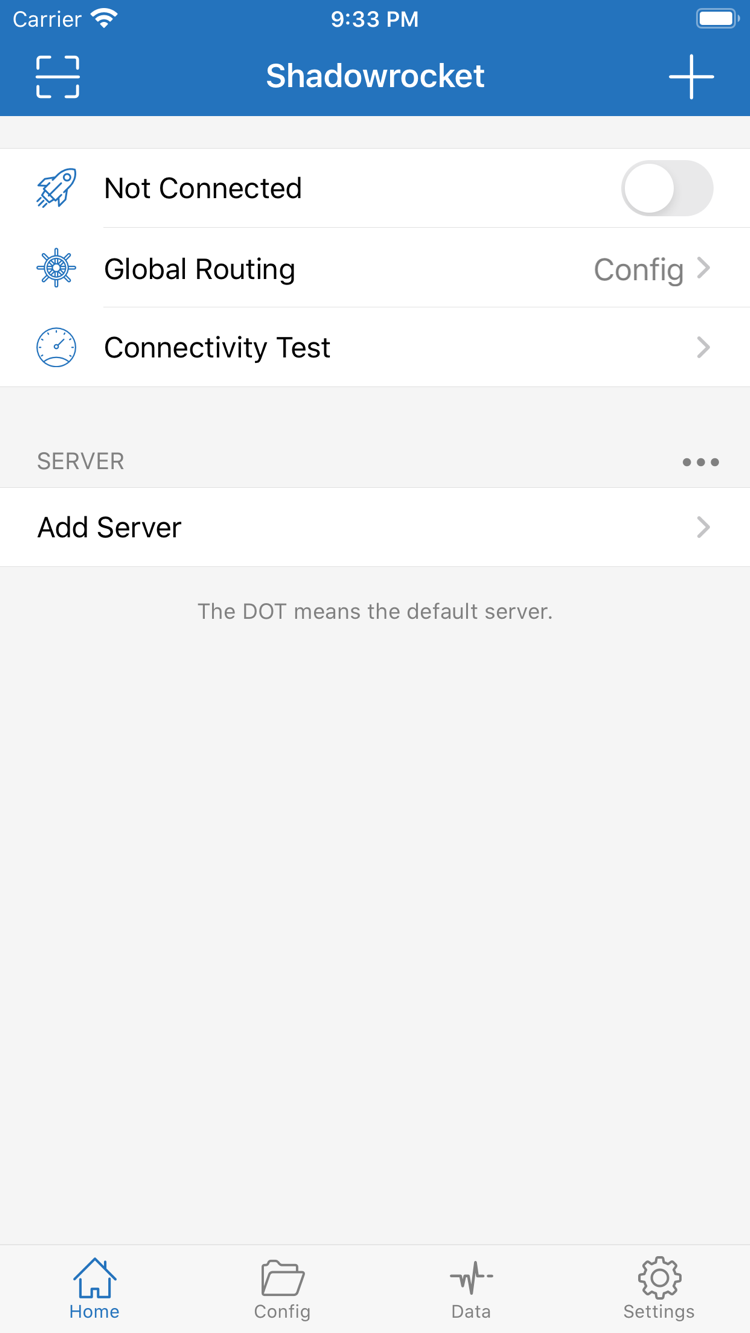
Official Shadowrocket Home screenshot showing Not Connected, Global Routing, Connectivity Test, SERVER, and Add Server
Home: Shows Not Connected, Global Routing, Connectivity Test, SERVER, and Add Server.
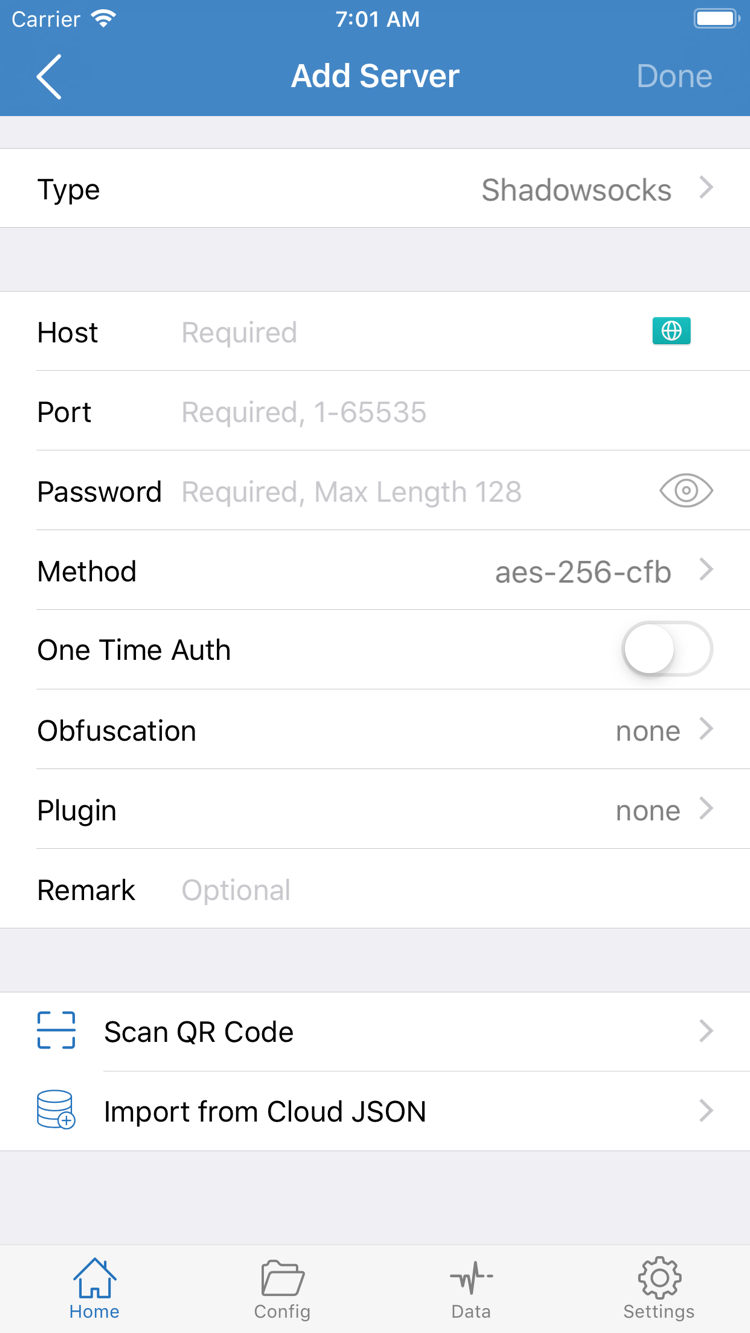
Official Shadowrocket Add Server screenshot showing Type, Host, Port, Password, Method, and other fields
Add Server: Includes Type, Host, Port, Password, Method, Scan QR Code, and Import from Cloud JSON.

How to use the screenshots

The images above show the official English interface presented in the App Store and can help identify the interface labels you may see after installation. Home includes connection status, Global Routing, Connectivity Test, and the SERVER group; Add Server includes server parameter fields. The layout may vary with device size, display settings, and app updates, so button position is not a definitive authenticity check. Verify the developer name, official icon, and app ID instead.

Device guide

Purchasing and first launch on iPhone and iPad

After purchasing with the same Apple ID, you can find Shadowrocket in that account’s purchase history. Page layouts may differ between devices, but the product identity, purchase record, and core interface labels correspond.

iPhone

Download and confirm purchase status on iPhone

Sign in to Media & Purchases with the Apple ID intended for the purchase, then open the Shadowrocket product page. If the account has not purchased it, the App Store shows the current storefront price and purchase confirmation flow; if it has a purchase record, the page shows a redownload option according to the actual status. The US storefront commonly shows about $2.99 as a one-time purchase; the final amount is shown on the payment confirmation page.

After opening Shadowrocket for the first time, the system asks for VPN configuration permission only when you actively enable the connection feature. The system displays this prompt to allow the client to create a network configuration. Read the app name and system explanation in the prompt, then decide whether to allow it based on your needs.

Do not rely only on old guides for compatibility. The current listing may indicate iOS 13.0 or later, but whether the device can download the app and whether a higher requirement applies are determined by the App Store listing shown on that device. When the system does not meet the requirement, use the compatibility information provided by the store.

iPad

View purchased items on iPad

If Shadowrocket was purchased with the same Apple ID, sign in to that account in the iPad App Store and check the download status from the account’s purchased items or the product page. Before deciding whether another payment is required, confirm that the iPad’s current Media & Purchases account matches the original purchasing account; do not infer this from the iCloud account alone.

iPadOS adjusts the interface for landscape, portrait, and window width. Lists may have more room than on iPhone, and some settings pages may use a split layout, but interface labels such as Home, Config, Global Routing, Subscribe, Add Server, Connectivity Test, and Settings remain useful for navigation.

The specific iPad system requirements are determined by the App Store listing. If the product page shows that it can be downloaded, still confirm the current Apple ID, storefront region, and price before purchasing; if it shows a compatibility notice, follow the information provided on the page.

Mac, Apple TV, and Apple Vision

The compatibility section of the same App Store listing includes Mac, Apple TV, and Apple Vision. “The same listing” means that product information is centralized on the page for app ID 932747118; it does not mean that every device, system version, or purchase scenario automatically has identical conditions.

To use it on these devices, open the App Store on the relevant device, sign in with the original purchasing Apple ID, and review the compatibility, purchase status, and system requirements shown for that device. Whether the same purchase applies and which system version is required are determined by the App Store listing. This guide focuses primarily on download, verification, and configuration on iPhone and iPad.

Device transfer and restore

Redownload from purchased items

After changing devices or removing the app, recover the original purchase record first, then handle the configuration inside Shadowrocket. The app purchase record and the user’s own subscription or server information are separate types of data and should be restored separately.

  1. Confirm the original purchasing Apple ID

    While the old device is still available, check the App Store account information to confirm which Apple ID was used to purchase Shadowrocket. On the new device, Media & Purchases should use the same account. If another account is signed in, the product page may show a price instead of the purchased status.

  2. Open the App Store account page

    Open the App Store, tap the account avatar, and then open Purchased. Find Shadowrocket in the list, or open the product page for app ID 932747118 to check its current status. If the current account has the corresponding purchase record, you can usually redownload the app without paying the app fee again.

  3. Complete the first launch according to the new-device prompts

    Open Shadowrocket after the download finishes. The new device treats it as a new app environment, so system permissions must be confirmed again when the relevant features are used. When the VPN configuration prompt appears, verify the app name and read the system explanation. Permissions confirmed on the old device do not automatically replace confirmation on the new device.

  4. Reimport your own configuration information

    Restoring the app does not necessarily restore configuration data automatically. Use your own saved subscription URL, share link, QR code, or server parameters to import them again through the relevant Subscribe, Add Server, or Scan QR Code entry points. After importing, select a server, set Global Routing, and use Connectivity Test to check whether the current configuration responds normally.

Price and purchase

The one-time purchase covers the client fee

The US App Store listing commonly shows about $2.99 as a one-time purchase; other countries or regions use their local currency, tax rules, and payment methods. Before purchasing, use the final amount shown on the App Store confirmation page.

“One-time purchase” means that Shadowrocket itself does not charge a monthly app usage fee. After purchase, the record is linked to the Apple ID used at the time; subject to store rules and device compatibility, the app can be redownloaded from that account’s purchased items.

Client purchase ≠ service plan. Purchasing Shadowrocket grants use of the client only; it does not automatically provide server information for connection. You need your own subscription or server parameters to configure Subscribe or Add Server. This guide does not provide, sell, or recommend any nodes or subscriptions.

Before purchasing, check these four items in order: the product page has app ID 932747118, the developer is Shadow Launch Technology Limited, the current account region is correct, and the device meets the requirements shown by the store. If the page does not update immediately after purchase, return to the App Store account page to check the purchase record and signed-in account, then follow the system prompts.
Purchase and Download FAQ

Frequently Asked Questions

The answers below explain storefront regions, purchase records, and device compatibility. Messages shown by the App Store for the current account and device take priority over general guidance.

Why can’t I find Shadowrocket in the App Store?

The country or region associated with an Apple ID determines the App Store content shown. The app is not available in the mainland China storefront. Check the current purchasing account’s region through Settings → Apple ID → Media & Purchases → View Account → Country/Region. The device language, time zone, and physical location cannot replace the account region information.

To change the region, use the official entry point in account settings and follow the system prompts regarding balance, payment method, billing details, and existing services. This guide does not determine whether an account meets the requirements; the result is determined by the message on Apple’s account page.

What should I do if I still can’t download it after opening the product page?

First confirm the Apple ID signed in to Media & Purchases, the account country or region, payment method, and device system requirements, then read the specific App Store message. If the button shows a price, verify that the current account truly has no purchase record; if it shows compatibility information, follow the requirements listed for the current device.

Also verify that the product-page developer is Shadow Launch Technology Limited and that the URL contains id932747118. Do not continue to payment based only on search results with similar names.

Do I need to pay again after getting a new iPhone?

Sign in to the App Store with the original purchasing Apple ID, find Shadowrocket in the account’s purchased items, and download it again. Because the one-time purchase is linked to the Apple ID, the key step is confirming that the new device’s current Media & Purchases account matches the original purchasing account.

After redownloading the app, your own configuration may not reappear automatically. Reimport your saved subscription or server information and confirm the system permissions on the new device again.

Can I use it on iPad after purchasing?

Use the same Apple ID to view purchased items or the Shadowrocket product page in the iPad App Store. iPadOS may use a wider list or split layout, but interface labels such as Home, Global Routing, Subscribe, Add Server, and Connectivity Test remain useful for navigation.

The specific iPad compatibility and system version requirements are determined by the App Store listing. Before downloading, also confirm that the iPad is signed in with the original purchasing account.

Can I use it on Mac, Apple TV, or Apple Vision?

The compatibility section of the same App Store listing includes Mac, Apple TV, and Apple Vision. On the target device, sign in to the App Store with the original purchasing Apple ID, then review the purchase status, compatibility, and system requirements shown on the product page.

Whether the same purchase applies across devices and which system version is required are determined by the App Store listing. This guide’s main operating instructions focus on iPhone and iPad.

What should I do if Shadowrocket’s interface is in English?

Use the English interface labels to navigate: Home is the main connection page; Global Routing selects Config, Proxy, or Direct; Connectivity Test checks the current connection; Subscribe and Add Server import your existing information; Settings contains configuration options.

This guide keeps the original interface labels and explains them at each step. The button order may change with device size and app updates, so follow the labels shown in the current interface.

Download Shadowrocket